

News

Miro: A New Standard in Responsible Innovation

Miro: A New Standard in Responsible Innovation The Miro monitor arm is setting new benchmarks in sustainability. It offers a high-performance solution without compromising on environmental responsibility. Designed with careful material selection, local sourcing, and longevity in mind, Miro’s responsible approach to design and unique manoeuvrability set it apart from the competition. Sustainable Choices Miro is crafted from energy-efficient materials with a lower carbon impact....

Read more
HSE Advisor

Role Purpose Support in the development, implementation and maintenance of the company’s Health, Safety & Environmental policies, processes, operational procedures, and standards.  Ensuring best practice and championing a continually improving HSE culture within the business. Key Responsibilities Liaise with and provide support to all areas of the business to eliminate, mitigate or reduce identified HSE exposures. Partner with the production management team and team leaders,...

Read more
CMD Ltd LAUNCHES 48-HOUR TURNAROUND ON BETATRAK® RAPID ORDERING SERVICE

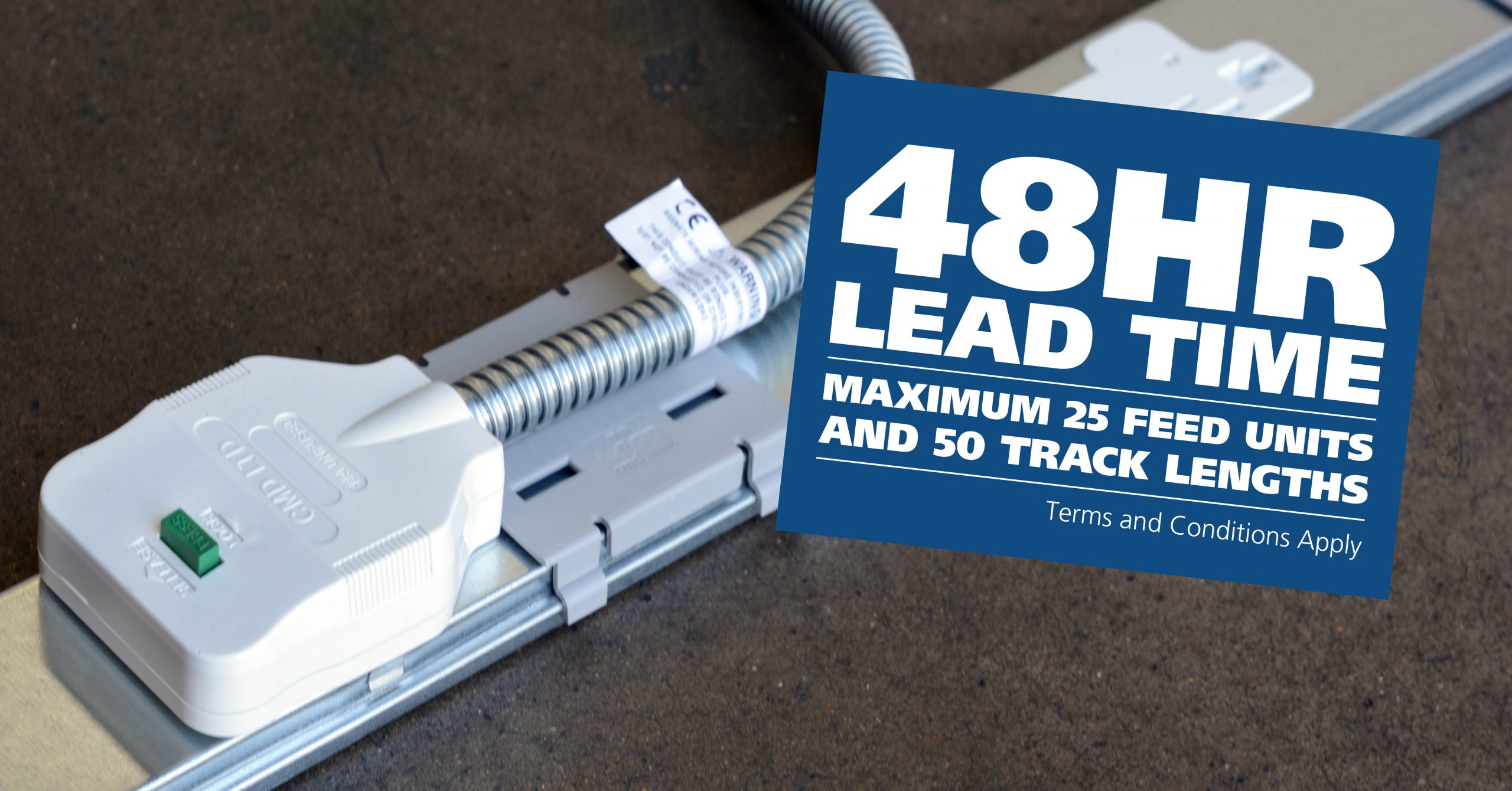
CMD Ltd, the specialist in power distribution systems, workstation power and monitor arms, has launched a rapid ordering service for its Betatrak® underfloor powertrack distribution systems and accessories, with a commitment to delivering within 48-hours of an approved purchase order*. The service enables customers to order up to 50 lengths of Standard or Clean Earth (C/E) low noise Betatrak, along with up to 25 feed...

Read more
CMD INVESTS £1/4 MILLION IN NEW MACHINE AS PART OF FACTORY UPGRADE

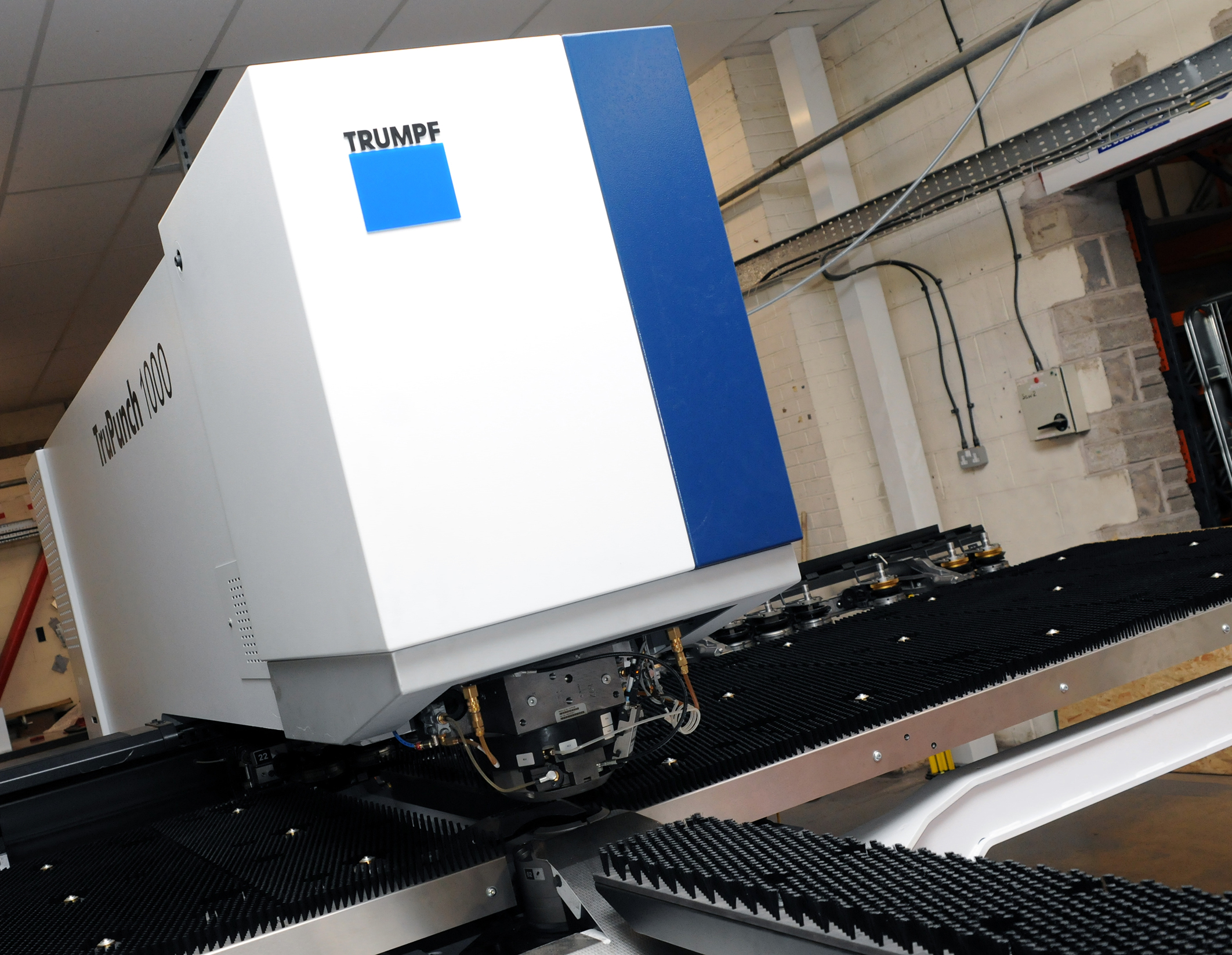
We have invested in a new £1/4m TRUMPF CNC metal punch as part of an asset renewal strategy for our UK manufacturing capability. The new machine will be used in the production of a wide variety of our power distribution systems and workstation power products at our Rotherham factory. Suitable for handling sheet metal between 0.9mm and 3.0mm thick, the new machine will replace one...

Read more
CMD CATALOGUE PROVIDES TECHNICAL POWER DISTRIBUTION GUIDE

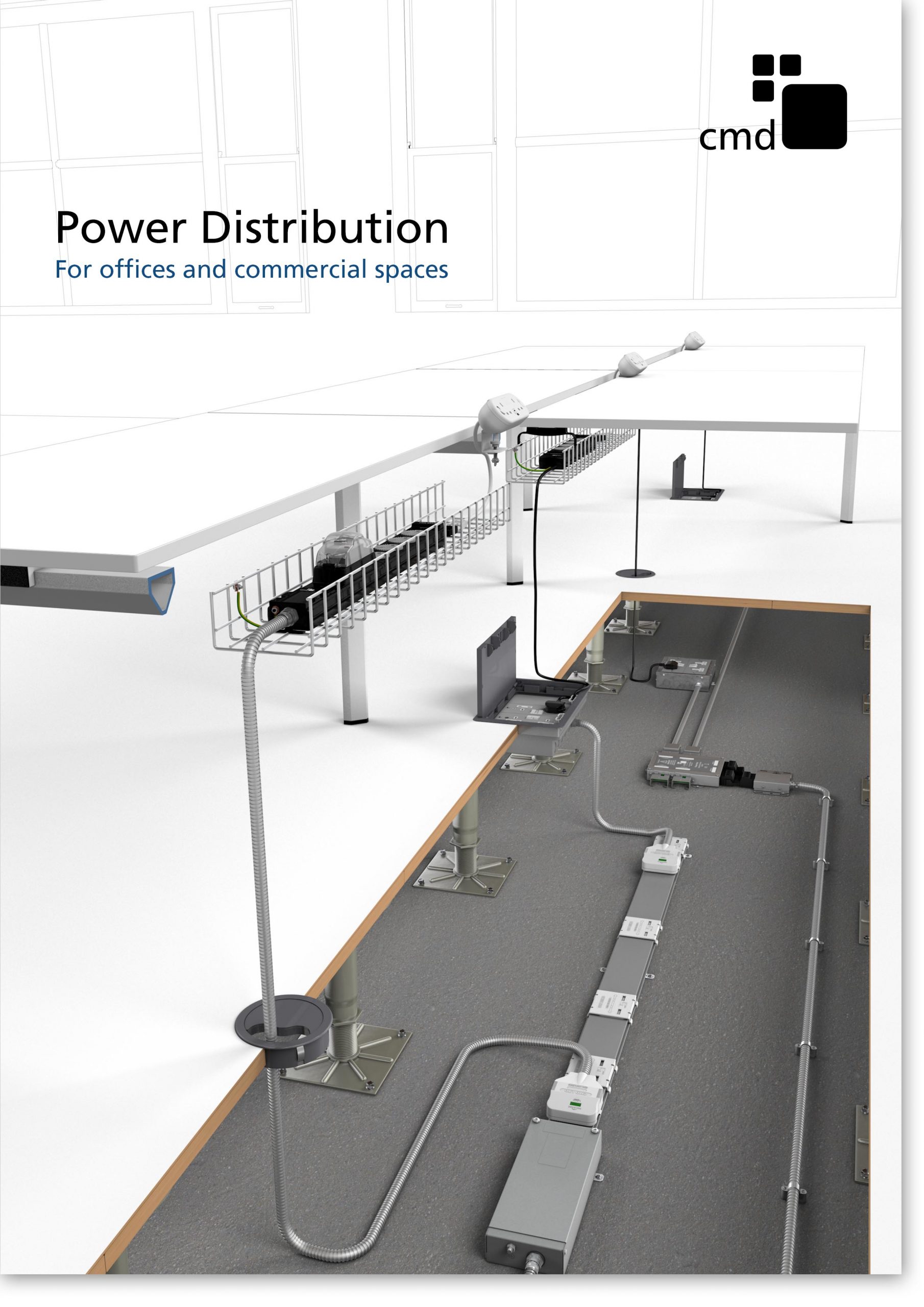
CMD Ltd has released a new catalogue, providing an easy to follow technical guide to our power distribution systems and plug and play desk modules. Detailing CMD’s full range of UK-manufactured power distribution systems and plug and play desk modules, the catalogue will be a helpful source of information to M&E engineers and contractors alike to understand how our power distribution systems connect together and...

Read more
Power Distribution Catalogue
CMD Ltd PLAYS ESSENTIAL ROLE IN ELECTRICAL FIT OUT AT LONDON’S PRESTIGIOUS OFFICE DEVELOPMENT

CMD Ltd, specialist in workplace connectivity and ergonomic solutions, has provided a flexible and high-quality power distribution network for The Ray, a prestigious office development in London’s Farringdon. Well-known for being the former site of The Guardian newspaper, The Ray now stands as an 83,000ft² office development characterised by a modernised warehouse aesthetic, with level two now occupied by a global social media company. The...

Read more

The Ray
CMD plugs in to european opportunity with Schuko Capsule unit launch

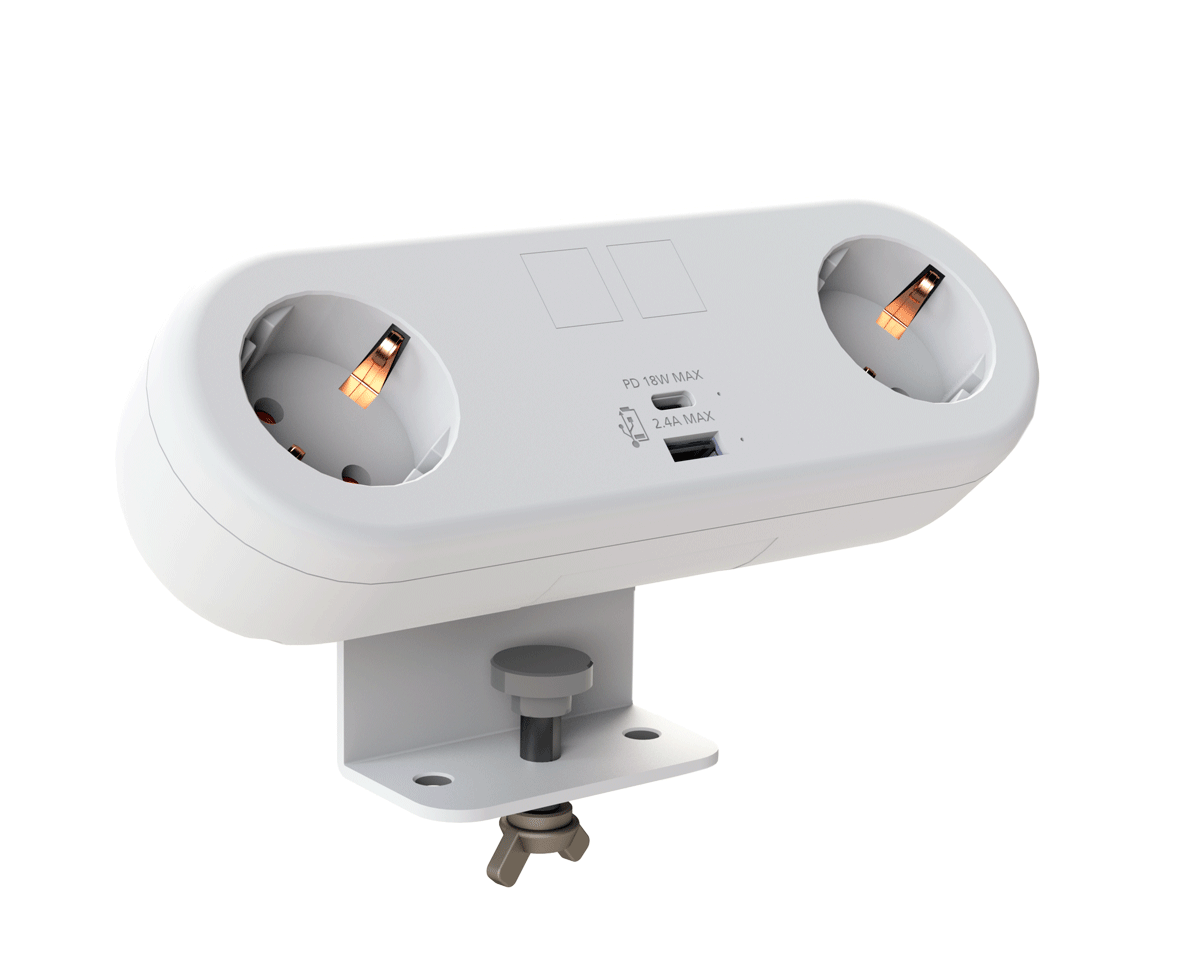
CMD Ltd, the specialist in power and connectivity solutions for commercial environments, has launched a Schuko version of its popular fixed format Capsule workstation power module for export to mainland Europe and beyond. A popular on desk power module comprising two sockets and dual USB (type A and C) chargers, CMD’s Capsule unit is already widely specified in the UK as an off-the-shelf workstation power...

Read more
CMD White Schuko Capsule Desk Power Module
CMD LTD EXTENDS MONITOR ARM RANGE WITH THE LAUNCH OF REACH PLUS

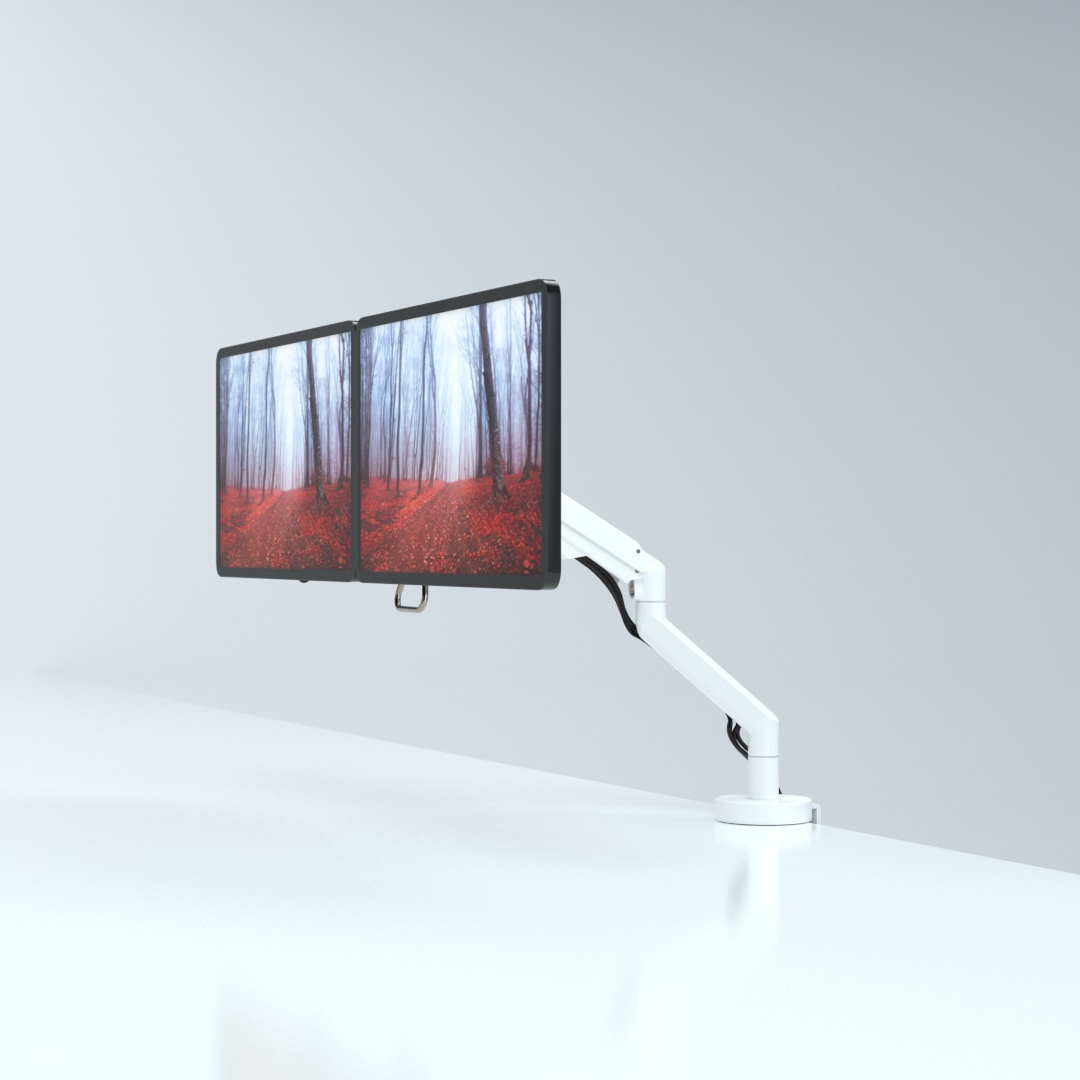
CMD Ltd, the specialist in ergonomic and connectivity solutions for commercial interiors, has completed its Reach monitor arm range with the launch of the Reach Plus. Available in single or dual screen options, the Reach Plus has been designed to provide an ideal solution for both single and dual screen workstation configurations, or can be used with next generation of large format curved screens. Suitable...

Read more
CMD Ltd DEMONSTRATES THE ART OF POWER DISTRIBUTION AT THE UNIVERSITY OF WARWICK

CMD Ltd, the specialist in workplace connectivity and ergonomic solutions, has provided Betatrak busbar power distribution and a range of electrical accessories for two major capital investment projects at the University of Warwick. Designed by Fielden Clegg Bradley Studios, the £33 million Faculty of Arts building is a showpiece development comprising four interconnected structures set around a central atrium, which will enable inter-disciplinary collaboration across...

Read more

University of Warwick
CMD BRINGS HARMONY TO COVENTRY UNIVERSITY RESEARCH FACILITIES

CMD Ltd, the specialist in power distribution solutions and workstation power and ergonomics, has provided under desk and on desk power modules for the refurbishment of three Coventry University research buildings. Located on Coventry University Technology Park, a business park designed to encourage collaboration between the university and knowledge-based businesses, the three buildings are being repurposed as office accommodation for university research teams. The refurbishment...

Read more

Coventry University

How to Recover Lost Files with Free Data Recovery Software?

Losing files can feel like watching weeks of work vanish from a suddenly silent drive. A deleted folder, formatted memory card, or failed partition does not always mean permanent loss. However, every new file written to that storage can overwrite recoverable data. Act quickly, but avoid panic.

Christophe Grenier, creator of the widely used TestDisk and PhotoRec tools, offers a practical warning: “Stop using the drive as soon as possible.” That advice shapes this guide. Data Recovery Software Free can scan deleted files, identify damaged partitions, and preview documents before recovery. Still, free tools are not magic. Their results depend on the file system, storage condition, and time since deletion. Some tools also limit recovery size or file types.

Begin by disconnecting the affected device when practical. Do not install recovery software on it. Use another healthy drive for installation and recovered files. A careful scan may reveal familiar filenames, photographs, or office documents beside confusing fragments. Check each preview. Names and folder structures can be misleading.

There is room for error.

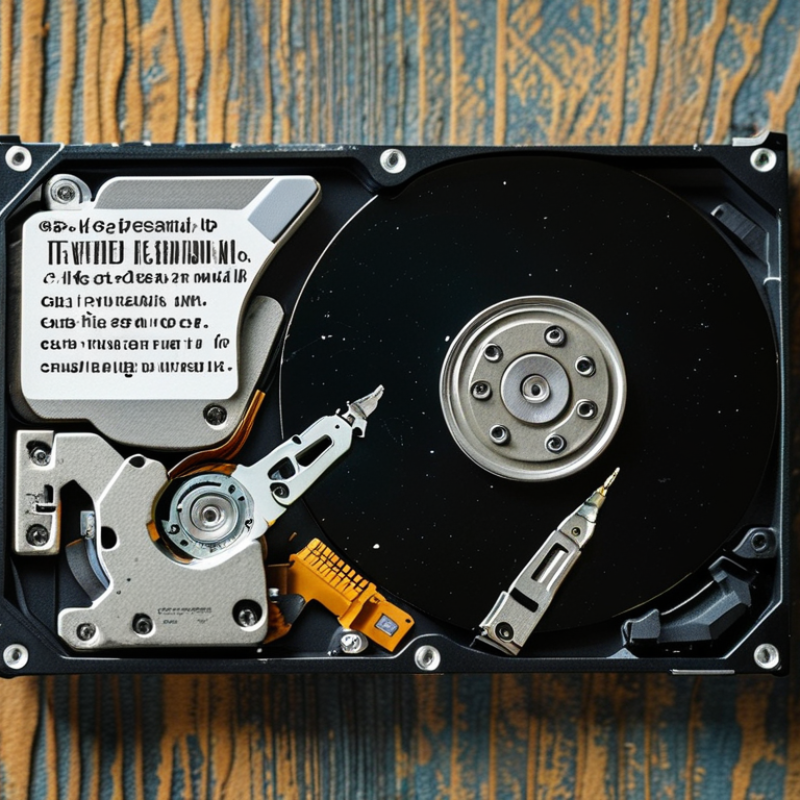
Even experienced users may select the wrong disk or trust an incomplete scan. Read the software’s official documentation, verify its publisher, and avoid suspicious download pages. If the drive clicks, repeatedly disconnects, or contains irreplaceable evidence, professional recovery may be safer. Data Recovery Software Free is most useful for logical deletion, not severe physical damage. This article explains a cautious recovery process, realistic limitations, and habits that reduce the chance of losing files again.

How to Recover Lost Files with Free Data Recovery Software?

Identify the Cause and Check Whether the Files Are Truly Lost

How to Recover Lost Files with Free Data Recovery Software?

Before using recovery software, identify what actually happened. Accidental deletion, formatting, malware, and drive failure require different responses. Check the Recycle Bin, cloud folders, external backups, and recently disconnected devices. Search by file type, not only by filename. Sometimes files are hidden, renamed, or moved after a system update.

The 2024 Data Breach Investigations Report analyzed 30,458 security incidents and found a human element in 68% of breaches. That figure concerns security events, but it also shows why deletion and access mistakes deserve careful checking. If the drive makes clicking sounds, disappears repeatedly, or reports severe errors, stop scanning. Continued use can overwrite recoverable data. Free recovery software may help after ordinary deletion, but it cannot repair physical damage. It can also create false confidence. A file listed in a scan is not always usable.

Tips: Stop saving files to the affected drive. Install recovery software on another disk. Save recovered files somewhere different. Preview documents before trusting them. If a backup exists, compare its date and size. For encrypted or physically damaged storage, consult a qualified technician and preserve the original device. Recovery is uncertain. That’s the uncomfortable part.

Stop Using the Affected Storage Device to Prevent Data Overwriting

How to Recover Lost Files with Free Data Recovery Software?

When a file disappears, stop using the affected storage device immediately. This is the most important recovery step. Every new photo, download, or system action may overwrite the missing data. Even a quick file preview can change recoverable information on some devices. In my experience, people often continue working because the drive still opens normally. That assumption can make recovery harder. Disconnect the device if you can do so safely.

Use another computer to download and run free data recovery software. Do not install the program on the affected drive. Save recovered files to a different disk, USB device, or secure network location. Never restore files to their original location during the scan. Many free tools can search deleted folders, partition records, and common file formats. A deep scan may take hours, especially on a large drive. Avoid repeated scans without a plan.

If the storage device makes clicking sounds, becomes unusually hot, or repeatedly disconnects, stop immediately. Free software cannot repair serious physical damage. Continued operation may worsen the condition. A professional recovery service may be safer in that situation. I have also seen recovery attempts fail because users renamed, moved, or opened damaged files repeatedly. Keep notes about each action instead. Recovery is uncertain. Some files may return with missing names, broken folders, or partial content.

Choose a Safe and Reliable Free Data Recovery Software

When files disappear, panic can cause costly mistakes. Stop using the affected drive immediately. New downloads or saved documents may overwrite recoverable data. A free data recovery tool should support your file system and scan common formats. It should also offer a preview before recovery. This feature helps confirm that the files are not corrupted.

Safety matters more than a long feature list. Download the software only from its verified official website or a reputable source. Check the publisher, privacy policy, security reports, and recent user feedback. Avoid tools that request unusual permissions or display aggressive advertisements. A trustworthy program should explain its limits clearly. Free does not always mean risk-free.

Use another drive to install the tool when possible. Save recovered files to a separate storage device. Never restore them to the damaged location. I once ignored this rule during a rushed recovery attempt, and several files became harder to open. That mistake changed my process. I now test a small group first, compare filenames and file sizes, and pause when results look inconsistent. Some free tools recover only limited data or lose original folder structures. That is frustrating, but honest limitations are better than false promises. Keep the computer untouched during scanning. Recovery takes patience.

Scan the Device and Preview the Recoverable Files

How to Recover Lost Files with Free Data Recovery Software?

When files disappear, stop using the affected device immediately. New downloads can overwrite deleted data. Install the recovery tool on another drive whenever possible. Connect the storage device carefully, then choose its correct location from the scan list. A wrong selection may waste time or miss the original file structure.

Start with a quick scan for recently deleted documents and photos. If results look incomplete, run a deeper scan. It may take longer, especially on large drives. Watch the progress, but do not interrupt the process without a reason. The scan should show file names, folders, sizes, and sometimes thumbnails. Preview these details before recovering anything. A familiar name is useful, but not enough. Check the file type and opening quality too.

Preview matters most.

A damaged image may display only half a picture. A document may open with missing pages. These signs suggest that recovery is uncertain. In my experience, file lists can look promising while the actual files remain unusable. I once trusted names alone and recovered several empty documents. That mistake was avoidable. Select only the files you genuinely need, then save them to a different drive. Free tools may have limits, and some files cannot be restored after heavy overwriting. Keep the original device untouched until you verify the recovered copies.

How to Recover Lost Files with Free Data Recovery Software? - Scan the Device and Preview the Recoverable Files
Recovery Stage Storage Source Recommended Scan Method What the Scan Can Identify Preview Check Important Recovery Action
1. Stop Using the Device Internal drive, external hard drive, USB flash drive, or memory card No scan yet; disconnect the device from unnecessary applications Prevents new data from overwriting deleted file content Not applicable
2. Select the Storage Location Visible partition, removable drive, or detected physical disk Choose the location where the file was originally stored Existing folders, partitions, deleted entries, and available free space Confirm the correct drive capacity and file system before scanning
3. Run a Quick Scan Recently deleted files on a readable file system File-system scan using directory records and recently available metadata Original filenames, folder paths, file dates, and recently deleted entries Check whether the filename, type, and file size appear correct
4. Run a Deep Scan Formatted, corrupted, or severely damaged partitions Sector-by-sector search for recognizable file signatures File fragments and file types even when folder names or metadata are missing Open a sample of recovered files to verify readability Results may have generic names or incomplete content
5. Filter the Results Any scanned storage source Filter by file category, extension, date, size, or folder Common categories such as documents, photos, videos, audio, archives, and email files Compare file size and modification date with the original file
6. Preview Recoverable Files Files detected by the quick or deep scan Use the built-in preview function when available Readable image thumbnails, document text, video frames, or audio details A successful preview is a useful sign that the file is not completely corrupted
7. Recover to Safe Storage Recovered data from the scanned device Export selected files to another internal drive, external drive, or network location Files that remain readable after being copied from the source Open the saved copy and verify its size, format, and contents Never save recovered data back to the source device
8. Check File-System Limits Storage formatted with NTFS, FAT32, exFAT, ext4, APFS, or another file system Use a tool that supports the detected file system and operating environment Recovery quality depends on file-system metadata, fragmentation, and overwrite activity Preview results can vary by file type and file-system condition Support differs between recovery tools and operating systems
9. Handle Physical Damage Clicking, overheating, intermittent, or undetected drives Stop software scans if the device makes unusual sounds or repeatedly disconnects Software may not reliably read sectors from physically failing media Do not repeatedly reconnect a damaged drive to test it Consider professional recovery for physical failure
Recovery success depends on whether the deleted data has been overwritten, the condition of the storage device, file fragmentation, and the file system used. Preview recovered files before exporting them, and always keep the destination storage separate from the source device.

Restore Selected Files to a Different Storage Location

When files disappear, stop saving anything to the affected drive. New data may overwrite recoverable fragments. In my experience, this pause often matters more than the recovery scan itself. Connect the storage device carefully, then open trusted free data recovery software from a clean, working location. Choose the affected drive and run a thorough scan. It may take time.

As results appear, filter by file type, original folder, and modification date. Use the preview feature when available. A visible filename does not prove the file is healthy. I once recovered a document with the right name but missing pages, so I now check several files before proceeding. Select only the files you need. Avoid restoring everything automatically. That can waste space and make verification harder.

Restore the selected files to a different physical storage location, such as an external drive or another internal volume. Never save recovered files back to the source drive. That mistake can overwrite files still waiting to be found. Create clearly named folders, such as Recovered_Photos or Recovered_Projects. Open the copies afterward and check images, documents, and videos individually. Some results may remain incomplete, especially after formatting or physical damage. Free tools can help, but recovery is not guaranteed. If the drive clicks, disconnect it and seek qualified assistance.